BUILT FOR SUBCONTRACTORS
See exactly how TenderLog works for subcontractors
Real screenshots from a subcontractor's own TenderLog -- every job logged, followed from enquiry through to completion, with deadlines and client history always up to date. (Sample data shown throughout.)
INSIDE TENDERLOG
Six workspaces. One place to run every job.
From the moment an enquiry lands to the day the job's complete -- every step, every client, every deadline lives here.
01 Dashboard
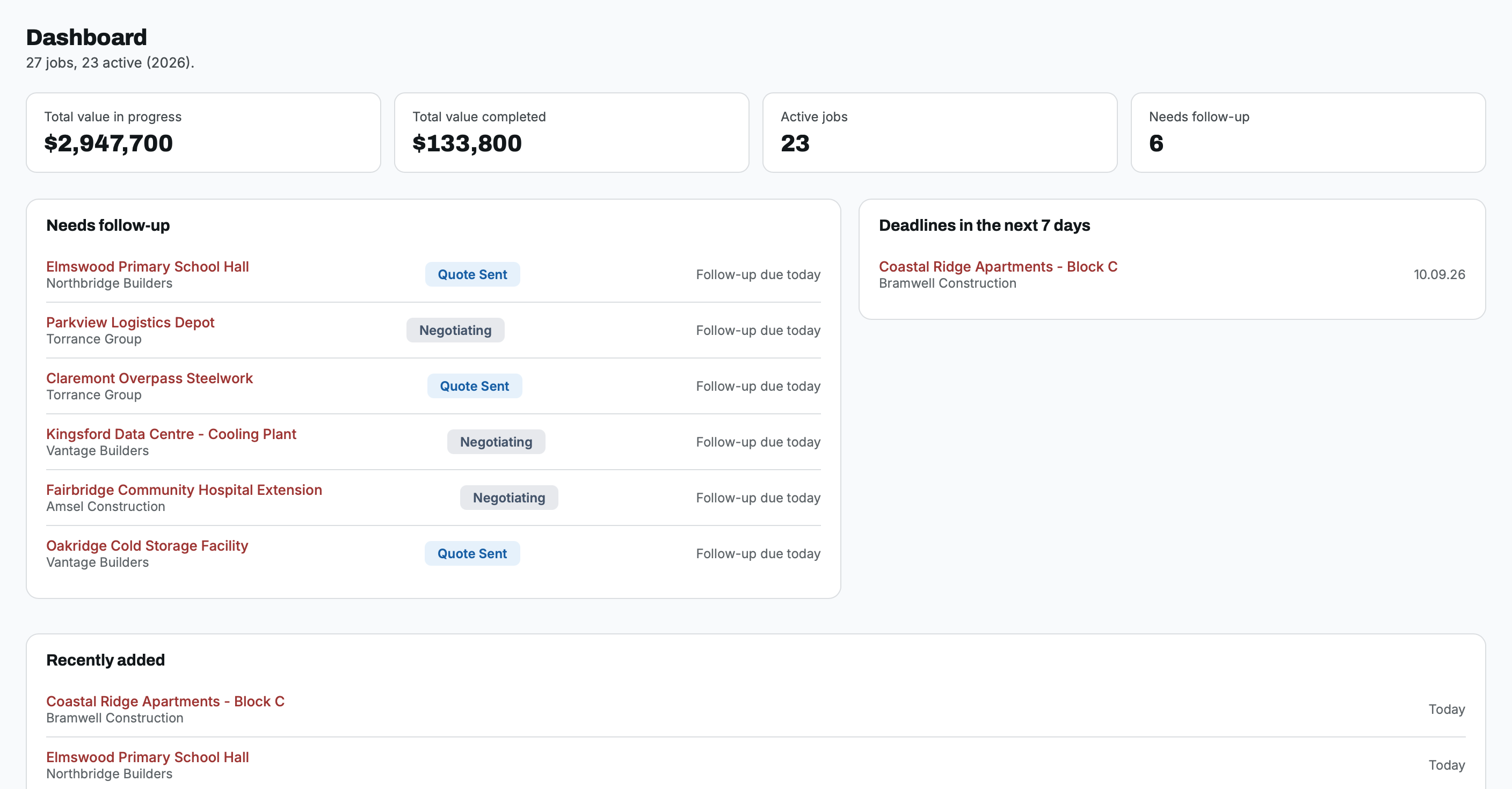
Open TenderLog and see, in seconds, exactly where things stand -- total value currently in progress, total value completed, how many jobs are active, and which ones need a follow-up today.
- Total value in progress and total value completed, at a glance
- Jobs that need a follow-up today, listed by name so nothing gets missed
- Deadlines in the next 7 days, so nothing is finished late
- Recently added jobs, and a one-click year filter to scope the whole app to this year or all time
02 Jobs
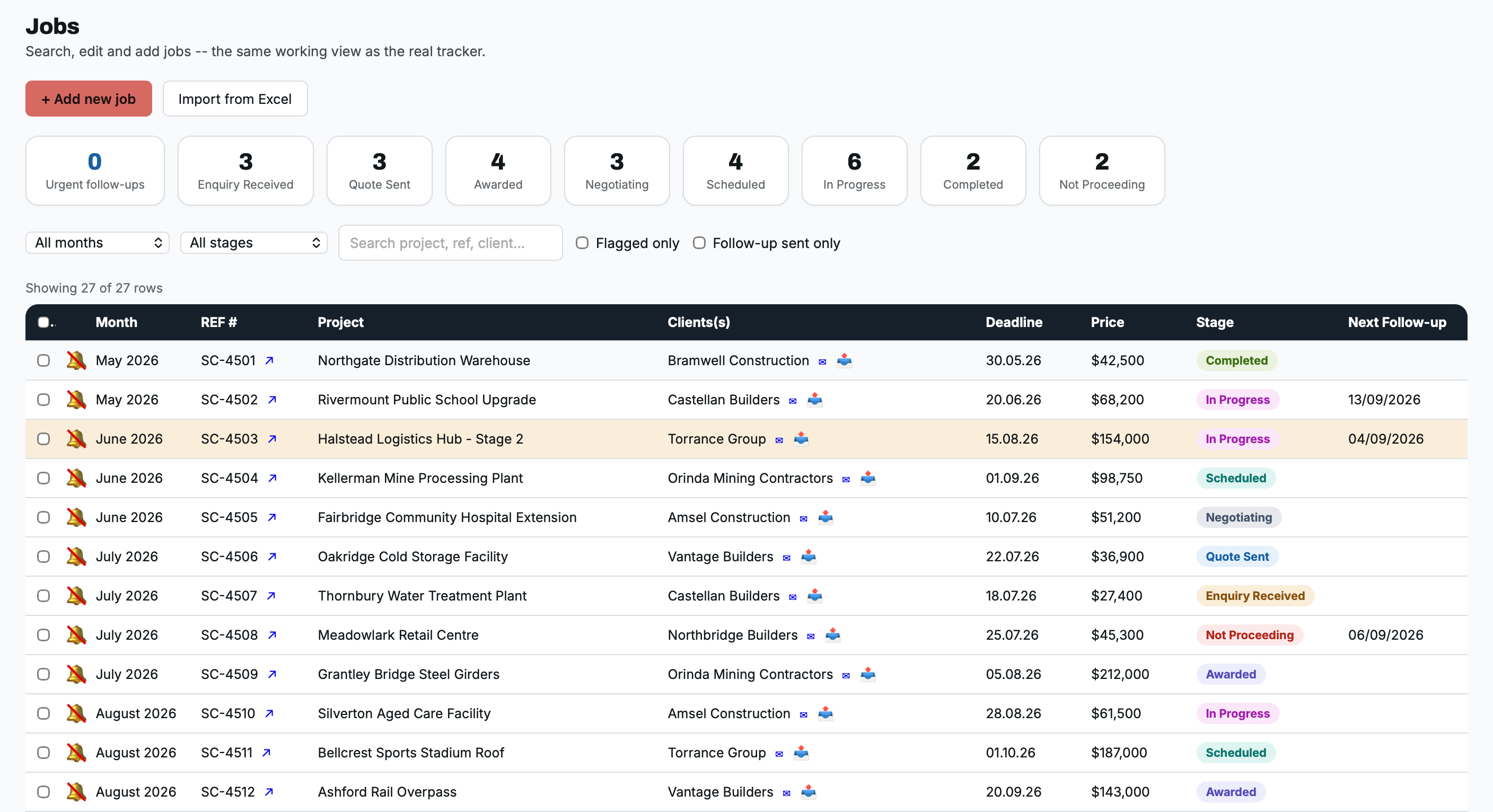
The table where every job actually gets created and edited -- sortable, with quick status cards across the top that double as one-click filters. Click any row to open the full job page: an internal task checklist, a running activity log, and a place to keep every client contact you deal with on the job.
FIELDS TRACKED PER JOB
Project name & REF #
Month / sheet
Client
Job value
Deadline
Follow-up interval
Client contacts
Internal tasks & activity log
SEARCH & FILTER BY
Month
Stage
Free-text: project, REF, or client
Flagged only
Follow-up sent only
One-click by status card
03 Pipeline
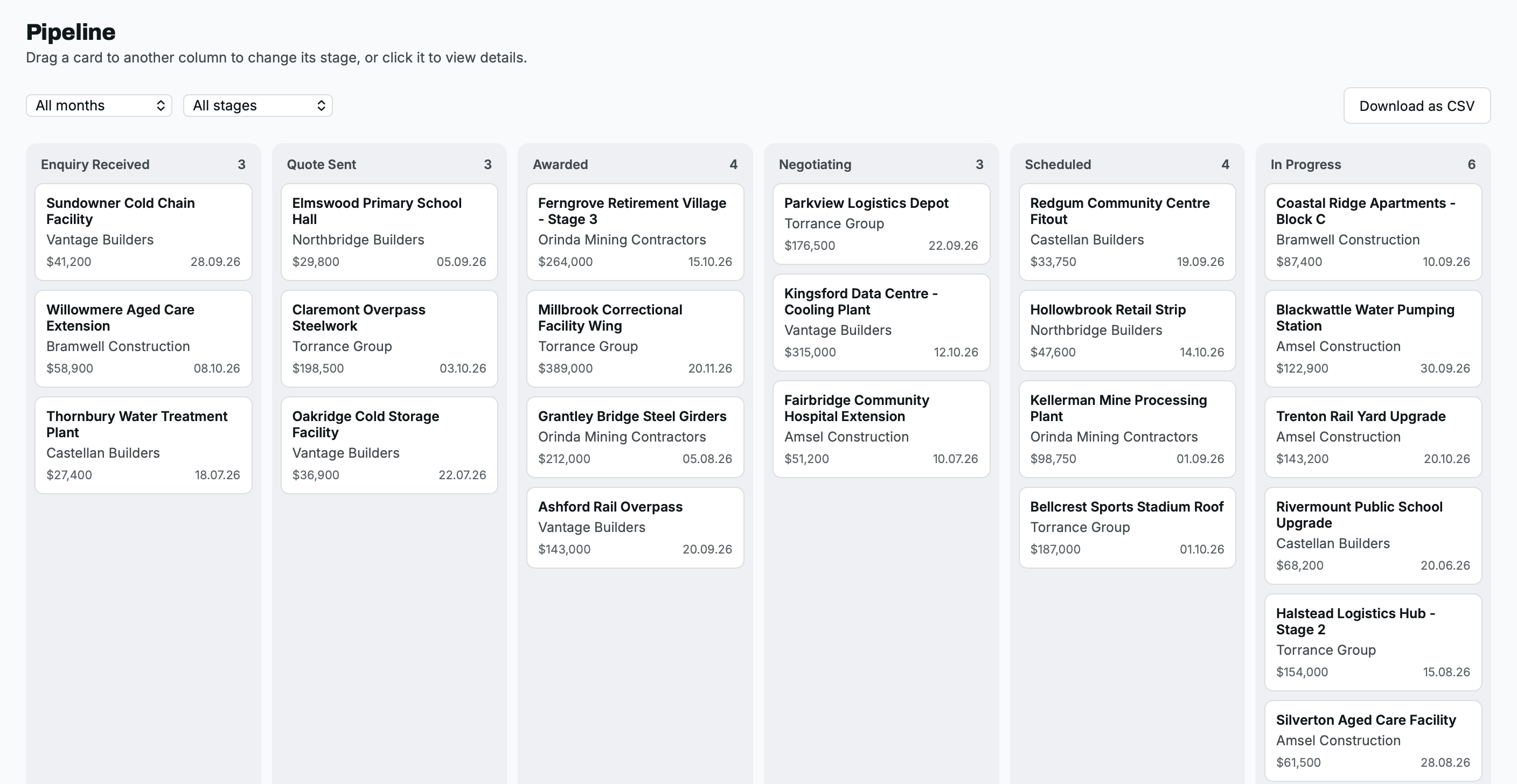
A drag-and-drop board with every job laid out across your workflow stages. Drag a card to move it a stage (it's logged in that job's activity history automatically); click a card to jump straight to its full detail page. Export the filtered view as a CSV any time.
YOUR STAGES, YOUR WAY
The stages shown here -- Enquiry Received, Quote Sent, Job Awarded, Negotiating, Scheduled, In Progress, Completed, Not Proceeding -- are just the starting point. Rename any stage to match how your team actually talks about a job, or add and remove stages entirely, from Settings.
SEARCH & FILTER BY
Month
Stage
04 Calendar
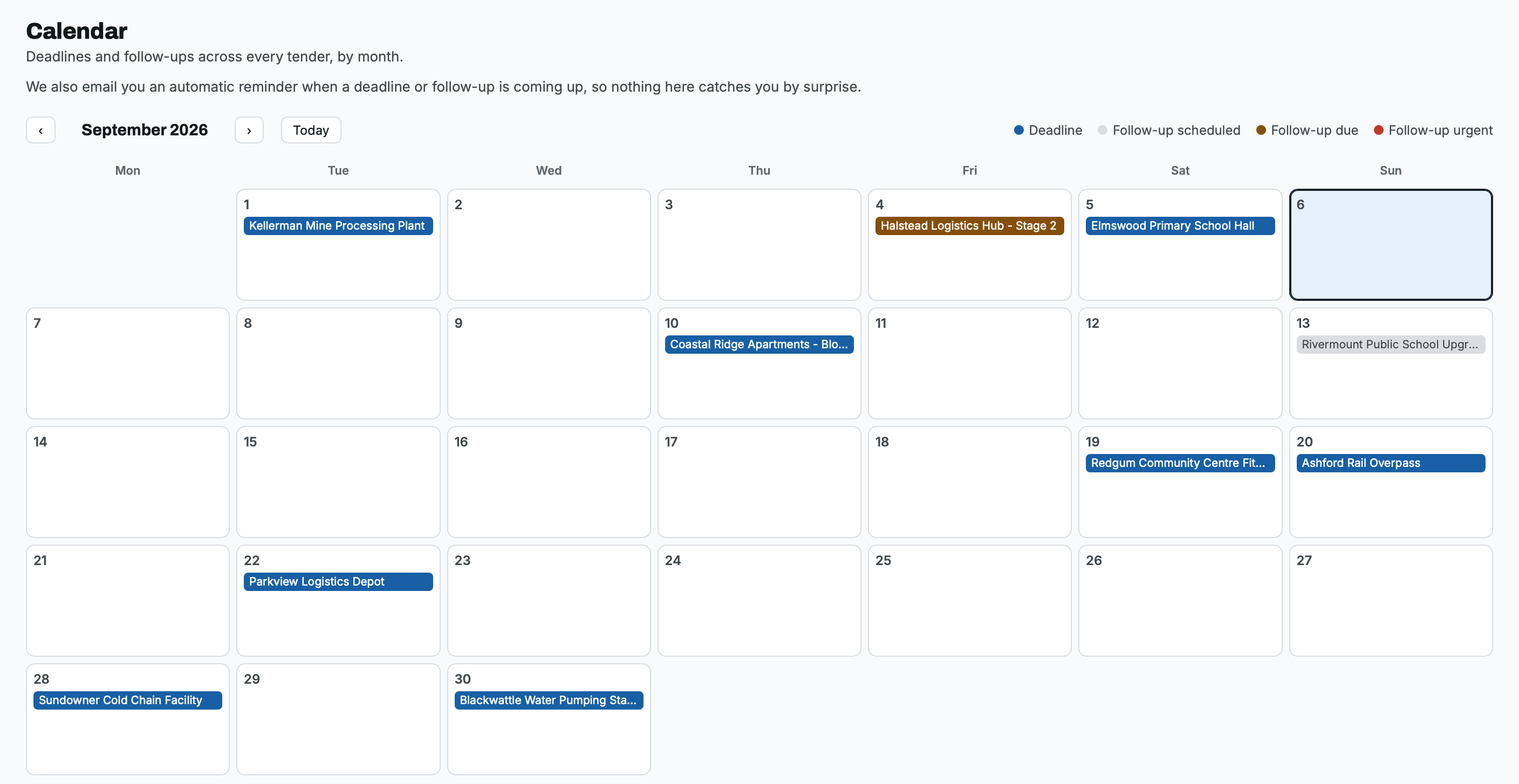
A month grid showing every job deadline and every upcoming follow-up at once. TenderLog computes each job's next follow-up date automatically from its interval, then flags it "due," then "urgent" past a configurable threshold -- so a job can't quietly age past its deadline. Click any day to see exactly which jobs land on it.
WHAT IT SHOWS
Job deadlines
Follow-up scheduled
Follow-up due
Follow-up urgent (overdue)
Scoped to the month in view
05 Clients
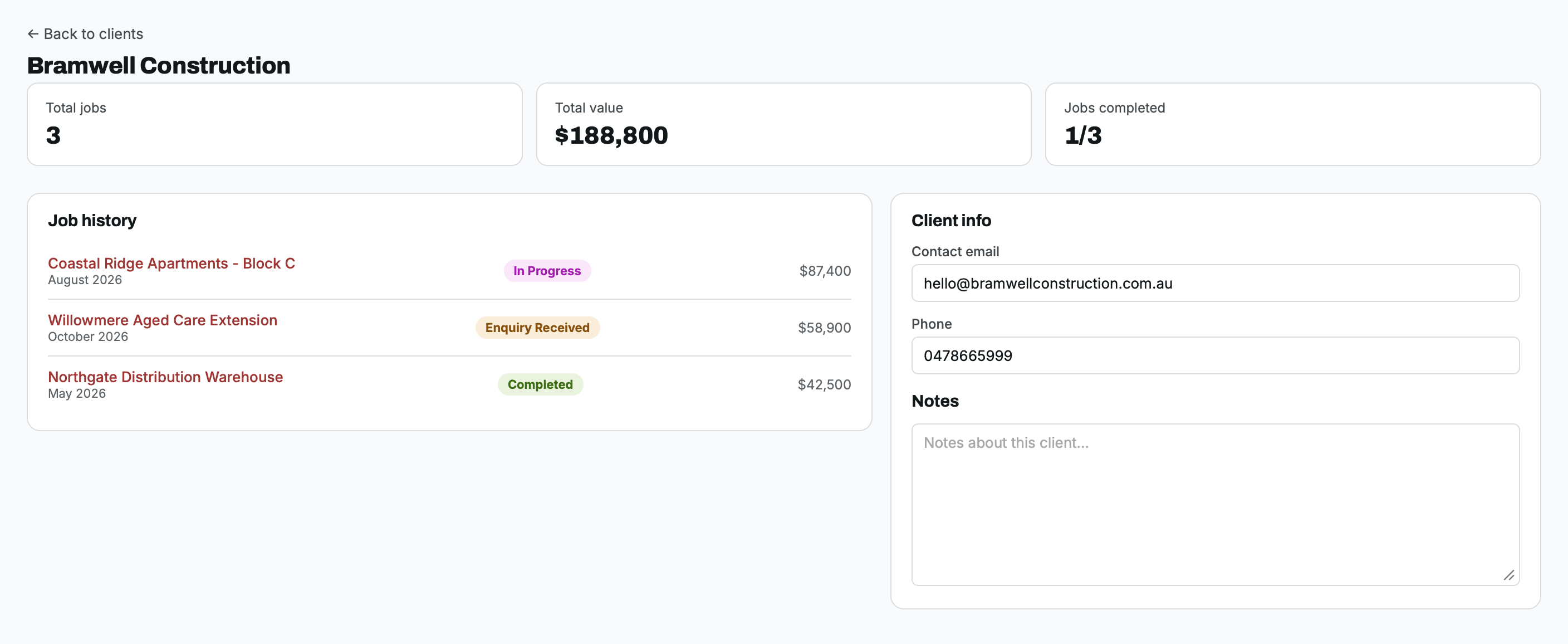
A mini-CRM, built automatically from your real job history -- no separate data entry. Every client gets a profile: total jobs, total value, how many jobs are completed, the full job history, and contact details and notes your team can read before the next call.
PER CLIENT, AUTOMATICALLY CALCULATED
Total jobs
Total value
Jobs completed
Full job history
Contact & notes
06 Reports
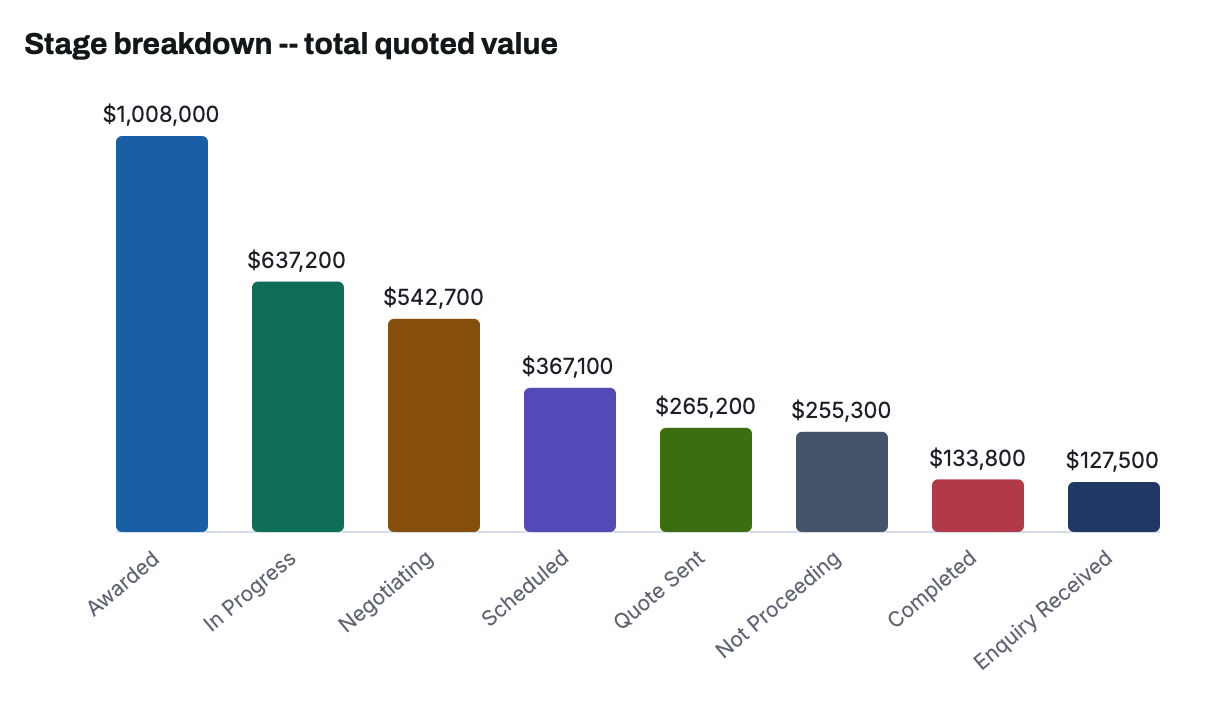
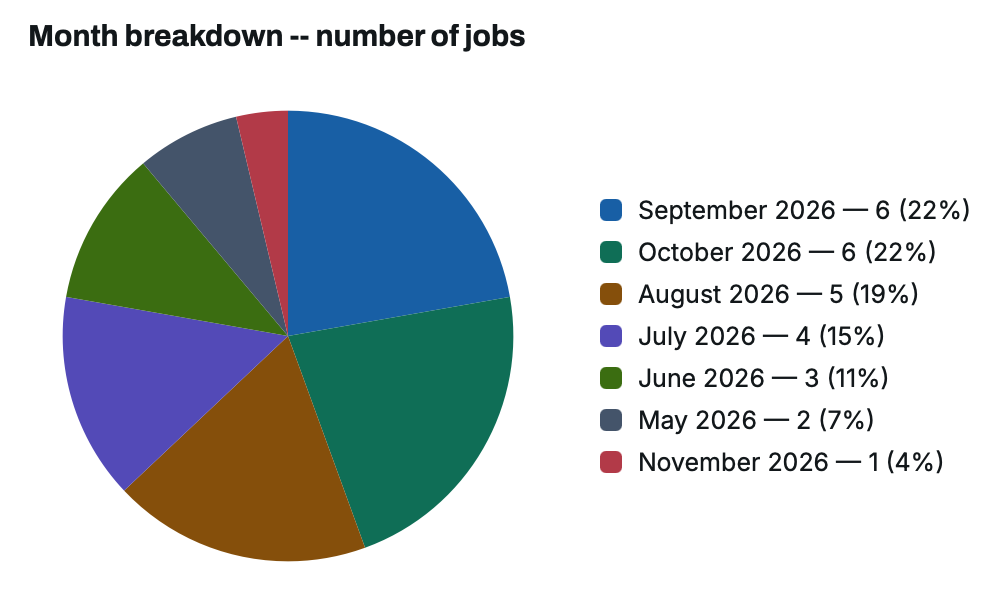
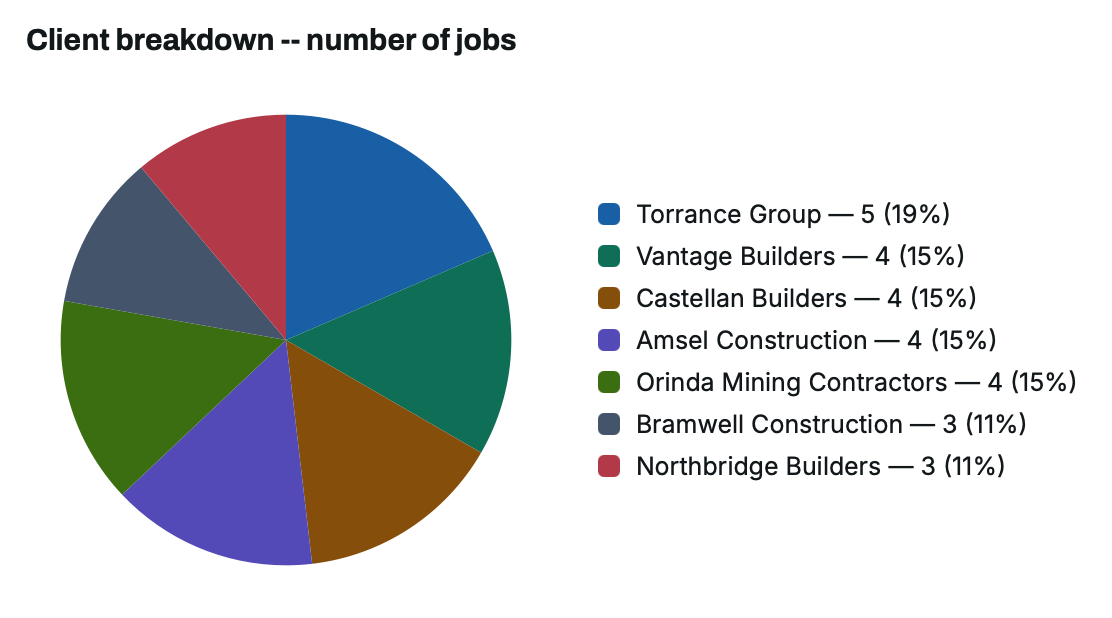
A self-serve report builder. Filter by month, stage or client, group the result however you want to compare it, choose count or total value, and get a live bar or pie chart plus the exact matching-jobs table underneath -- exportable, and never touches your underlying data.
FILTER & GROUP BY
Stage
Month
Client (searchable)
Metric: count or $ value
Bar or pie chart
Ready to see it with your own jobs?

© 2026 TenderLog. Built for subcontractors.